
How to Get High-Quality Game Screenshots
 1644
1644

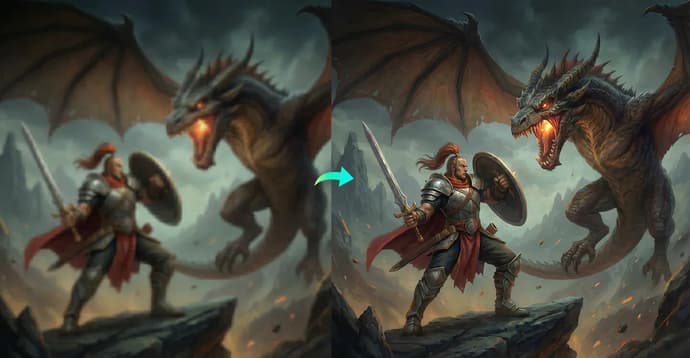
High-quality game screenshots matter more than ever. Whether you're a gamer who wants to show off a stunning in-game moment, a creator preparing a tutorial, or someone sharing highlights on social media, sharp and detailed images help your content stand out. A crisp screenshot can instantly capture attention and show the true beauty of a game.
However, many players are surprised when their shots look pixelated, blurry, or dull compared to what they saw on screen during gameplay. This often happens due to multiple factors: from in-game resolution and graphics settings to the chosen method of image capture.
The good news is that getting high-quality screenshots is easy if you know the right steps. This guide explains why your images may look blurry and provides three practical tips, including the effective use of an image enhancer, to instantly improve your screenshot quality.
Why Your Game Screenshots Look Blurry
Before getting straight to how to get high quality game screenshots, it is essential to first understand why your game screenshots look blurry.
Well, one of the main reasons game screenshots appear blurry is low display resolution. If you are playing at 720p or a non-native resolution, the screenshot will naturally look softer because fewer pixels are being captured. Even if the game looks fine during play, the still image will not have enough detail to remain sharp when viewed on larger screens.
Another reason is compression. Many players take screenshots using external tools or platforms that automatically compress the image to reduce file size. This compression lowers quality and removes fine textures, making the screenshot look washed out or fuzzy.
In some cases, blur happens simply because the wrong capture method is being used. Games often include a built-in screenshot feature that captures uncompressed images directly from the game engine, but players may use the "Print Screen" method or third-party software instead, resulting in lower-quality output.
3 Tips to Get High-Quality Game Screenshots
Here is how to get professional-looking shots, from easy fixes to pro settings.
1. Use a Photo Enhancer to Upscale Screenshot Resolution
If you don't want to mess with technical settings, using an AI tool is the fastest way to rescue a shot. An AI photo enhancer can improve image clarity by increasing resolution, sharpen details, and remove blur. These tools work by analyzing your screenshot and rebuilding missing pixels using trained AI models. The result is a clearer, more detailed version of the original image.
Artguru is a solid choice for this. It is a specialized AI platform built for visual enhancement, featuring a Photo Enhancer, Video Enhancer, and Photo Restoration tools. It is entirely web-based and incredibly easy to navigate.You do not need to download heavy software or possess photo-editing skills to use it. The platform is optimized to handle digital graphics, making it highly effective at cleaning up the specific types of noise and blur found in compressed game screenshots.
How to Upscale Your Game Screenshot with Artguru
Step 1. Go to the Artguru website. Choose the "Photo Enhancer" tool if you simply need to fix clarity and remove blur, or select the Image Upscaler if you require an ultra-high-resolution image (up to 8K) for printing or large screens.
Step 2. Click to upload your screenshot, then wait a few seconds for the AI to enhance the image automatically.
Step 3. Save the newly sharpened, high-quality version to your device.
This method is perfect when you already have screenshots that look soft or pixelated and want to unblur image details without retaking them.
Beyond just sharpening, advanced AI tools often offer a complete workflow for polishing your gaming content. For instance, if you are creating a YouTube thumbnail, you can use a background remover to instantly isolate your character. Then, to perfect the composition, an object remover allows you to erase unwanted objects or distracting details, leaving you with a flawless final image.
2. Increase the In-Game Resolution
The simplest way to get higher-quality screenshots is to increase your game's resolution. The higher the resolution, the more pixels your screenshot will contain, which means sharper edges, better textures, and less noise.
If your PC can handle it, switch your game settings to 1440p or 4K, even if your monitor does not support it directly. Many games allow "render resolution" upgrades that improve screenshot quality while your display remains at its normal resolution. You can also use super-sampling technologies (such as NVIDIA DSR or AMD VSR), which render the game at a high resolution and then compress it to fit your screen, making the image incredibly smooth.
Just remember that higher resolution requires more GPU power. If your performance drops too much, reduce the setting slightly until you find the right balance.
3. Use the Game's Native Screenshot Feature
Most modern games offer a built-in screenshot function, and it often produces the highest quality images. Unlike external capture tools, the native feature captures the image directly from the game engine, which means it avoids compression and retains maximum detail.
For example:
- Steam: By pressing F12, you can configure the settings to save uncompressed copies in PNG format instead of the usual JPGs, which lose quality. (Go to Settings > In-Game > check "Save an uncompressed copy").
- NVIDIA Ansel: In supported games, this tool allows you to take shots in ultra-high resolution and 360-degree panoramas.
- Photo Mode: Many games have their own Photo Mode offering depth of field, focus, exposure, and camera angle controls.
Always check if your game includes these built-in options. They are designed specifically for creators and usually produce the best screenshots.
Conclusion
Getting high-quality game screenshots doesn't have to be confusing. It is a combination of smart shooting and correct processing. To achieve the best results, apply these methods at different stages of work:
- Use Artguru for post-processing: This is the ideal choice when the screenshot is already taken, and you want to bring it to perfection, such as upscaling resolution to 8K for print, removing accidental blur, or removing the background for a cover.
- Use game settings during shooting: Increasing rendering resolution and using built-in photo modes (or tools like NVIDIA Ansel) will ensure you get the highest quality and "cleanest" source material with full creative control.
Combine these approaches, and your gaming content will always look professional and impressive.

Kateryna Prykhodko jest kreatywną autorką i niezawodnym współpracownikiem EGamersWorld, znanym z angażujących treści i dbałości o szczegóły. Łączy opowiadanie historii z jasną i przemyślaną komunikacją, odgrywając dużą rolę zarówno w pracy redakcyjnej platformy, jak i zakulisowych interakcjach.

 Przewodnik dla widzów sezonu LEC Wiosna 2026: daty, harmonogram, format, uczestnicyKompleksowy przewodnik dla widzów LEC Spring 2026. Znajdź pełny harmonogram meczów, uczestniczące drużyny, zmiany formatu i analityczne wskazówki dotyczące zakładów na nadchodzący sezon LoL.
 Chillplay
 Wyniki fazy grupowej ESL One Birmingham 2026, dzień 2 i harmonogram dnia 3GamerLegion zaskakuje wszystkich, a Aurora Gaming pewnie odnosi dwa zwycięstwa. Poznaj wyniki wszystkich meczów drugiego dnia oraz harmonogram trzeciej kolejki ESL One Birmingham 2026.
 Dima Ostapchuk
 Szybki przewodnik po Pustyni KrwistejMapa Crimson Desert jest większa niż Skyrim i Red Dead Redemption 2 razem wzięte. Oto jak działa szybka podróż.
 vitaliiD
 Łatwe zwycięstwa Tundra Esports i MOUZ oraz inne wyniki pierwszego dnia fazy grupowej ESL One Birmingham 2026Tundra Esports i MOUZ rozpoczęły ESL One Birmingham 2026 od łatwych zwycięstw. Zobacz wszystkie wyniki pierwszego dnia i harmonogram drugiego dnia.Dima Ostapchuk
 #15
#15 Yakutou Brothers
 #8
#8 BetBoom TeamOglądaj mecz